Manual Scenario Development Station
This manual is intended for anyone who will build scenarios with the Scenario Development Station. This guide describes the following topics:
Purpose of the Scenario Development Station
Explanation what the scenario development station is
Instructions for Urban Builder
Instructions for building a 3D environment in Urban Builder and for exporting a 3D environment from Urban Builder to SUIT
Instruction for SUIT
Instructions for creating and testing a scenario in SUIT
Purpose of the Scenario Development Station
Prior to a training, new environments and/or scenarios may have to be created in order to achieve the set training goals. This is possible on the Scenario Development Station. This is a stand-alone laptop with the software Urban Builder and SUIT on it.
- In Urban Builder, a 3D environment (e.g. a shopping center) can be (re)created in an accessible way and exported to SUIT.
- In SUIT the exported 3D environment can be opened. A scenario – a specific situation within an environment – can be created and tested here. This scenario can then be loaded onto the EXCON using the external hard drive and used for training.
Case 12 SUIT DEVELOPMENT STATION is not mentioned in the connection diagram as it is an optional part of the system that can also be used separately. If desired, it can be plugged into the power reels of power group A or B by adding the power and current requirement to that group. It has two power cables for use in a socket (BS 1363) or for use in the power reel (CEE 7/7).
Instructions for Urban Builder
Urban Builder is an easy and accessible program to create 3D buildings. This building can then be exported to SUIT to create scenarios in.
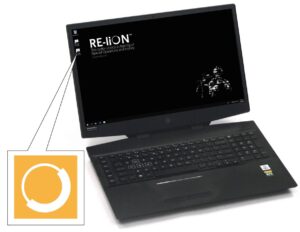
Double click on the yellow RE-liON icon to start Urban Builder.
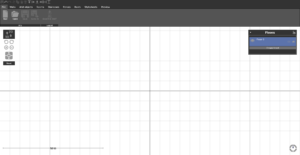
Start constructing the new building in Urban Builder. Use the Urban Builder reference manual for explanation about the interface

When the building in Urban Builder is finished, go to the File tab and click on Export to SUIT. Navigate to the “external harddrive drive letter”\re-lion\user_assets\worlds folder and create a new folder with the name for the new environment. Select the newly created folder and click Select Folder.
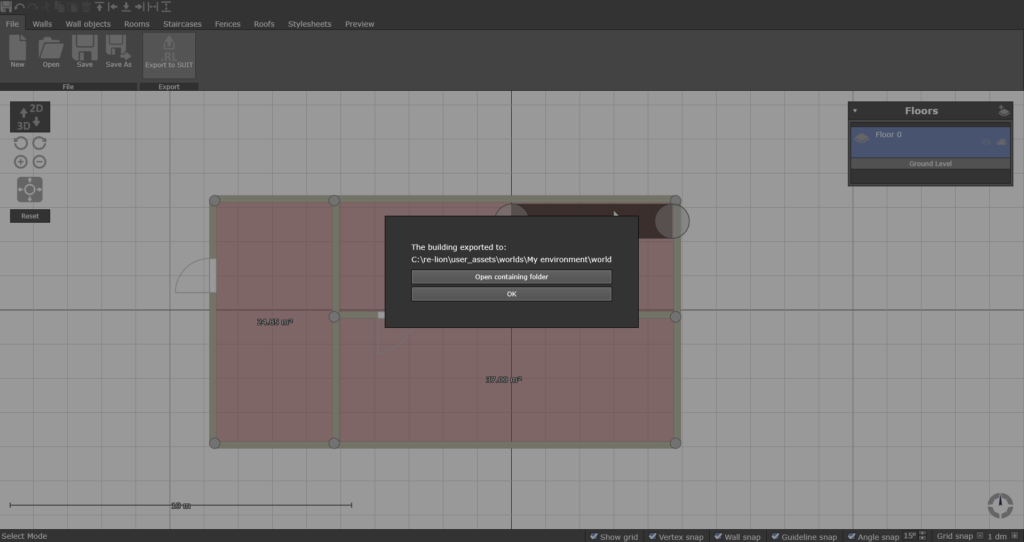
After Urban Builder is done exporting a prompt will show up confirming the export is successful. Press OK to close the prompt and go back to Urban Builder or press Open containing folder to open the export folder in the Windows Explorer.
When making an export from Urban Builder to SUIT on the SDS laptop without the external harddrive plugged in, it is needed to transfer the exported world to the external harddrive of the EXCON before it can be used for training. Connect the external harddrive to the SDS laptop, Unlock Bitlocker from the drive and copy the exported world to “external harddrive drive letter”\re-lion\user_assets\worlds
Instructions for SUIT
After an environment has been built in Urban Builder and exported to SUIT, this environment will be added to the environments. In SUIT, a scenario can be built and tested in this environment. This scenario can then be used for training with SUIT.
Double click on the SUIT icon to start SUIT. Click “Ok” at the Hertz message on the screen.
In SUIT, go to Edit Scenarios.
Choose an environment to create a scenario in:
In the right list are the empty environments. When an environment has just been exported from Urban Builder, it is not yet visible in the list.
At the bottom right, first click on Refresh list (1). Select an environment (2). A preview of the environment is displayed
OR
Choose an existing scenario to edit:
Existing scenarios are shown in the left list. Select a scenario (1). When a scenario is selected, a preview of the scenario and a description are
displayed at the bottom of the screen. There are three options when an existing scenario is selected (2):
- Click Clone to make a copy of the screenplay and edit it. A copy of the selected scenario opens.
- Click Edit to edit the scenario. The selected scenario opens.
- Click Delete to delete the scenario. The selected scenario is removed from the list.
Create a scenario in the chosen environment or edit the existing scenario. The different options for creating and editing a scenario can be
found in Edit scenario actions.